Shadowrocket · Subscription guide

Manage several subscriptions,
not just add one.

The home-page quick start and the full tutorial only cover adding a single subscription. If you have more than one provider, or you want a cleaner node list and less manual updating, this article covers multiple subscriptions, filters, auto-update, and multi-device sync.

CoversMultiple subscriptions · hide and groups
AdvancedRegex filters · auto-update
Multi-deviceiCloud auto sync

Note: Paths follow the official manual and hands-on tests. Menu copy can change with app versions. Trust what you see on the device.

01Multiple subscriptions

Use several subscriptions
without them colliding.
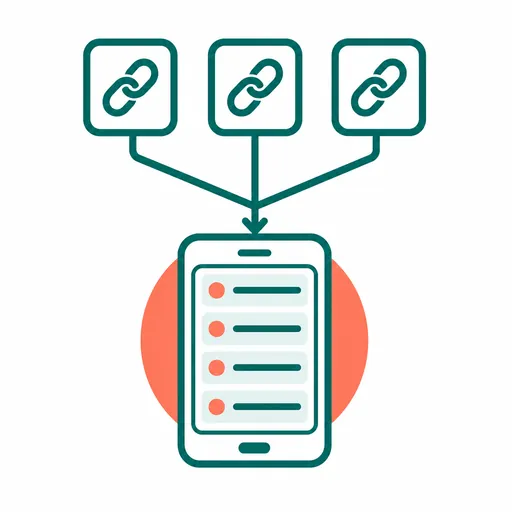
Each subscription is saved as its own entry and does not overwrite the others

Shadowrocket does not cap how many subscriptions you can add. The steps are the same as the first one: + at the top right of Home → Type Subscribe → paste the URL → fill in Alias → save → open it and tap Update. Each subscription is its own row on Home. Open it to see only that feed's nodes. They do not mix.

To turn one URL into several independent entries (different update times, or the same feed with different filters), append #1, #2, and so on. Shadowrocket stores them as separate subscriptions and they will not overwrite each other.

⚠️ Common mistake: pasting a new URL into an existing subscription's edit field to "replace" it. That usually only changes that entry's source. It does not create a new one. To keep both for comparison, tap + and add a new entry instead of editing the old one.
02Hide and groups

When you have too many,
how to keep the list clean.

Hide a subscription you are not using so its nodes leave the list

If you do not want a subscription for now but do not want to delete it (temporarily down, or a spare), long-press the row and choose Hide. Its nodes leave the Home list. Settings and update history stay. Unhide when you need it again.

Config files have a similar grouping feature: when editing rules you can set a proxy group, turn on Subscribe inside the group, and pick which subscriptions belong there. Then a class of sites only picks nodes from those feeds instead of the whole mix. This is advanced. With one or two subscriptions you can skip it.

Tip: Hide has the same effect as setting that subscription's node limit to 0. The subscription stops offering selectable nodes for now; the subscription data itself stays.

03Node filters

Use a regular expression
to keep only the nodes you want.

Use a regular expression to keep only the nodes you want from a large list

Providers often pack dozens or hundreds of nodes into one URL, including regions you will never use. In subscription settings you can enter a regular expression against node names and keep only matches, so the list is quieter.

If names look like “HK-01”, “JP-02”, “US-03”, and you only want Hong Kong and Japan, a filter such as HK|JP is typical (standard regex; case and multiple branches depend on what the field actually supports). Filtering only hides rows; it does not delete nodes. Clear the field to undo.

A node filter applies only to the subscription you selected. It does not affect other subscriptions or locally added nodes.

04Auto-update

Keep node info
fresh on its own.

Refresh subscription nodes on a schedule

Providers rotate IPs and add or drop nodes. If you never refresh, the list goes stale. Shadowrocket offers several update methods, from most hands-on to most automatic:

HowPathNotes
Update manuallyTap Update on the subscription detail page, or swipe the subscription rowMost direct, but you have to do it every time
Update On OpenSettings → Subscribe → turn on Update On OpenRefreshes once when the app comes back from the background
Auto Update in BackgroundSettings → Subscribe → turn on Auto Update in BackgroundUpdates on a schedule in the background. Extra permission required (see the note below)
Shortcuts / long-press iconUse Shadowrocket's update-subscription action in the Shortcuts app, or long-press the Home Screen iconUseful with system automations (for example a timed shortcut)

⚠️ Auto Update in Background also needs Settings → General → Background App Refresh allowed for Shadowrocket, or the switch does nothing in the background. The interval is set inside Shadowrocket, usually between 1 and 24 hours.

05iCloud sync

How to share one config
across devices.

Share config across devices with iCloud auto sync

If Shadowrocket is on both iPhone and iPad and you do not want to add subscriptions twice, turn on iCloud auto sync: Data → iCloud → Auto Sync, then confirm Settings → your Apple ID → iCloud allows Shadowrocket to use iCloud Drive. After that, nodes, configs, modules, and scripts sync. Other devices on the same Apple ID see the same data when they open the app.

A few caveats: Scenes and Groups are not in auto sync today — reconfigure them or export a backup on a new device. Sync depends on iCloud itself. Unstable networks or iCloud outages can delay or fail a sync. Waiting and retrying is usually enough; it is not an app bug.

⚠️ If you delete a node on Home and it comes back later, iCloud often still has a sync record. Go to Data → iCloud, find that server, and delete the iCloud backup so the deletion actually sticks.

06FAQ

A few frequent questions
about subscriptions.

These are the subscription questions we hear most: missing nodes, updates that look like no-ops, and truncated aliases.

Frequent subscription questions
01The subscription suddenly has no nodes. Was it blocked?+

First check whether the subscription expired or hit a traffic cap — that is the usual cause. Confirm account status with the provider. It is not a Shadowrocket issue. If it is not expired, the URL may have changed and you have not refreshed yet. Try Update once.

02I tapped Update but the list looks the same?+

If the source did not change its node set, the list looking the same after Update is normal. On the subscription detail page, check Last Updated and the node count to see whether the refresh actually ran, instead of judging by appearance alone.

03The Chinese alias is truncated. What can I do?+

On some iOS versions a non-ASCII Alias may show as “…” in the list. That is layout, not a broken subscribe. An English or ASCII short name wraps more reliably.

04Will deleting one subscription affect the others?+

No. Each subscription is stored separately. Deleting one only removes the nodes it fetched. Other subscriptions and locally added nodes stay.

If this page does not cover your case, see the troubleshooting guide, or go back to the home-page FAQ.