Shadowrocket · Full tutorial

From install to rules:
the complete walkthrough.

This is the long Shadowrocket tutorial. On top of the home-page short path it adds a comparison of three import methods, delay-test settings, Global Routing, how rules work, and failures we actually hit in testing.

App versionAround 2.2.67 (check the live App Store build)
SystemiOS / iPadOS 13.0 or later
PriceOne-time App Store purchase, no IAP or app subscription
ProtocolsShadowsocks · VMess · VLESS · Trojan · HTTP/SOCKS5 · WireGuard · Hysteria2

Note: Paths follow App Store descriptions and hands-on tests. UI sketches are original drawings of the real flow (not official screenshots). Menu copy and placement can change with versions. Trust what you see on the device.

01Prep

Before you configure,
get two things ready.
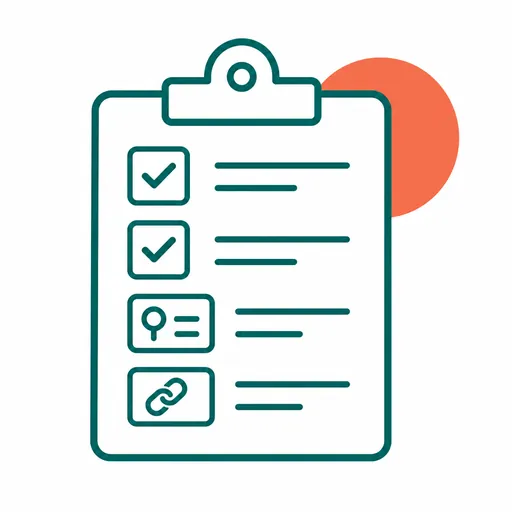
Before setup you need an Apple ID and a subscription URL

Shadowrocket is only a client. It forwards traffic by rules. Where you land and how fast it feels depends on the server (node) you use. Before you start, confirm two things:

  • Apple IDShadowrocket is listed only in some App Store regions. If your storefront has it, buy with your usual Apple ID. If not, sign into the App Store only with an Apple ID from a listed region.
  • Subscription URLA link that starts with http(s):// or sub://, from your own server panel or a paid provider. Without it the app has nowhere to connect.

Note: Shadowrocket does not provide or sell nodes or subscriptions. You bring your own source. This article only covers how to configure the client.
02Install

Install and first launch.

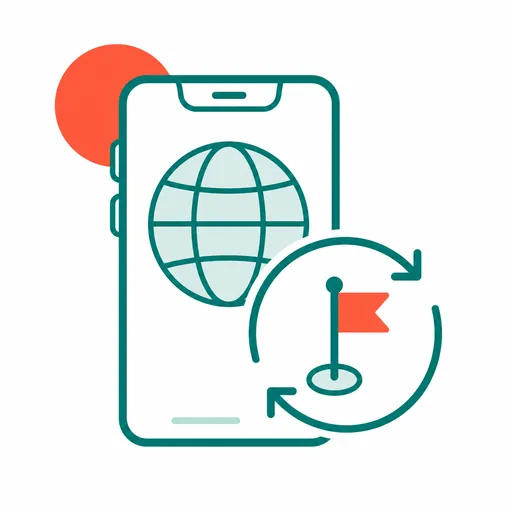
Use a listed-region Apple ID in the App Store if your storefront does not show Shadowrocket

If the app is already in your App Store, skip the sign-out. Otherwise open Settings → your name → Media & Purchases → Sign Out, then sign in with a listed-region Apple ID. If a billing address is required, choose None when you can.

Search the App Store for Shadowrocket and buy it (often $2.99 one-time; the price on screen wins). After install you can switch the App Store back to your everyday Apple ID. The app stays.

On first launch, Shadowrocket asks to add a VPN configuration. That is an iOS security prompt. Every proxy app uses this interface to forward traffic. It is not an upload of private data. Tap Allow, then confirm with Face ID, Touch ID, or your passcode.

03Import a subscription

Three import methods,
and when to use each.

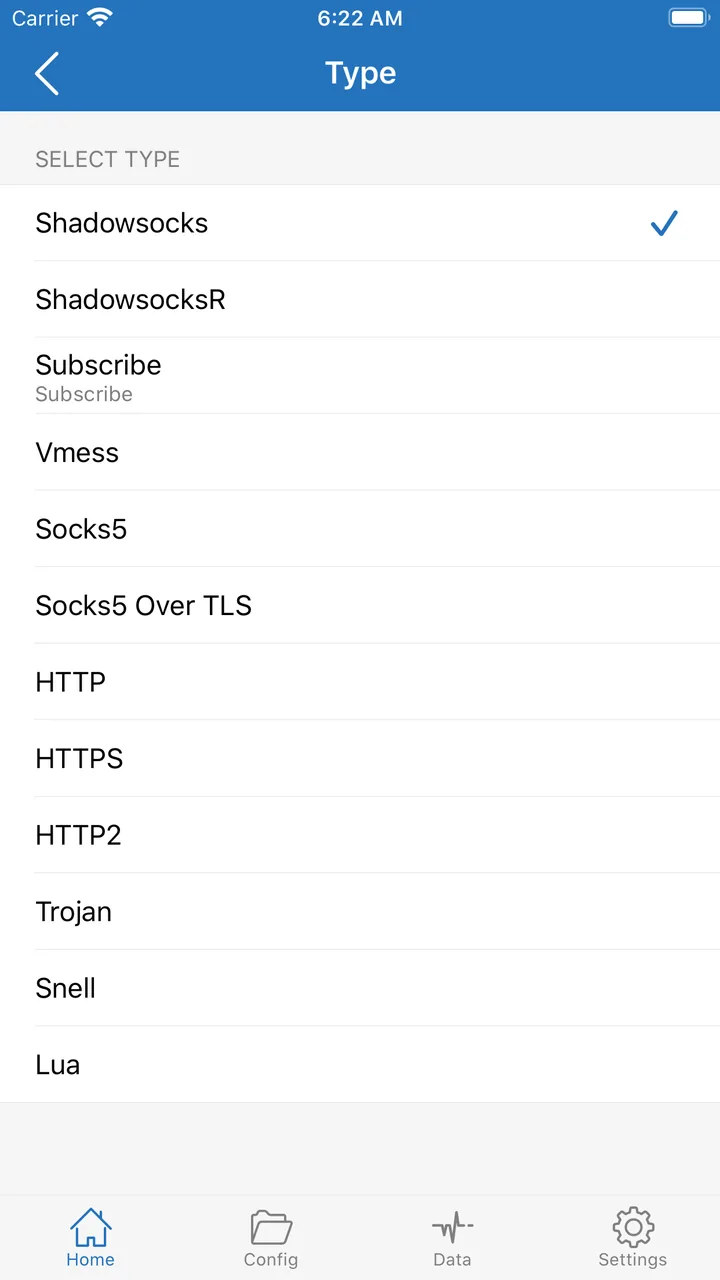
Shadowrocket has three ways to import a subscription. All start from + at the top right of Home, Type Subscribe. The difference is how the URL gets into the field.

Add Server Type list, including Subscribe

Add-subscription form

Home, top-right +Type Subscribe → paste the URL → set an Alias you will recognize (ASCII names wrap more reliably on some iOS versions) → Save.

Easy to miss: after save the node list is still empty. Adding a subscription only stores the URL. It has not fetched nodes yet. Go back to Home, open that row, tap Update. Then Shadowrocket requests the URL, pulls nodes, and the list fills in.

Tip: append #1, #2, and so on to the same URL to add it more than once with different names, useful for comparing feeds. To skip tapping Update every time, go to Settings → Subscribe and turn on Update On Open (refresh when you reopen the app) and Auto Update in Background (also allow Shadowrocket under Settings → General → Background App Refresh, or it will not run in the background).

MethodWhen to use itFAQ
Paste URL The URL is in Notes, a chat, or email The link is truncated — open it, Select All, then copy. Do not drag-select by hand
Scan QR code The provider gave you a subscription QR image Glare blocks the scan — max brightness, hold the camera a bit farther
Clipboard detect You just copied the URL from a browser or chat Only fires on a cold start or when returning from background. An old URL in the clipboard can be picked up by mistake — clear it first

If the node list is empty after import, the URL is usually expired or not yet active. Confirm with the provider. That is not a client bug.

04Nodes and routing

Pick a node,
and set Global Routing.

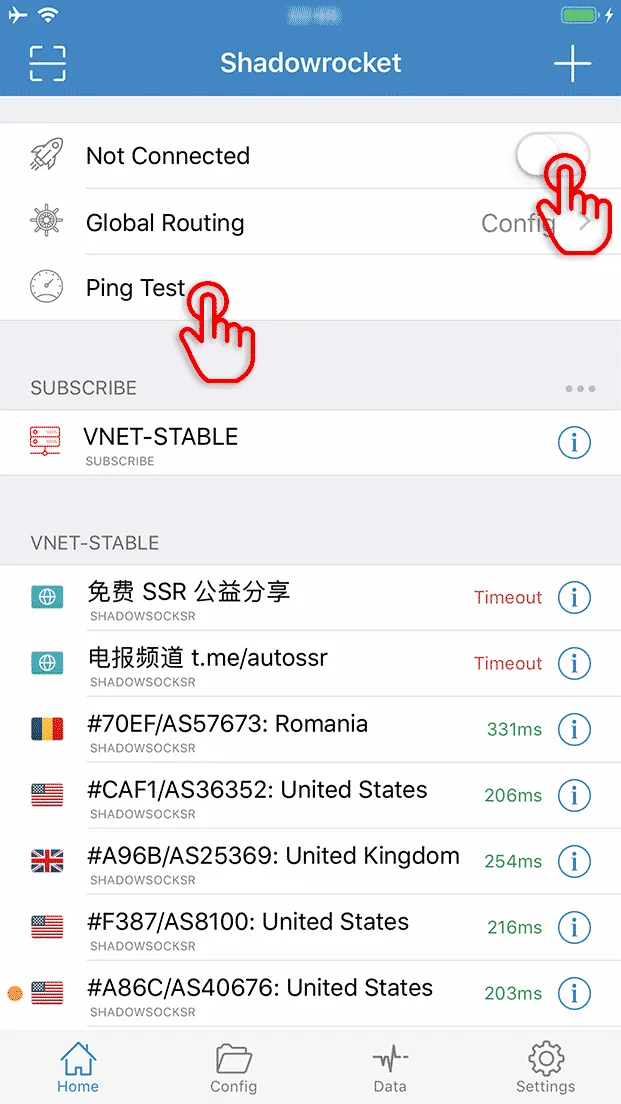
After import, nodes show in groups on Home. Before you test and pick one, make a small change: Settings → Ping Type, switch the default to CONNECT. The delay number will be closer to a real handshake than the default method.

Home node list with ping times

Test and pick a node

Tap Test on the right of a subscription group to ping the whole set. Colors: green is low delay and usable; yellow is high; red / Timeout means unavailable for now — pick another, the app is fine. Tap a row to make it the current node.

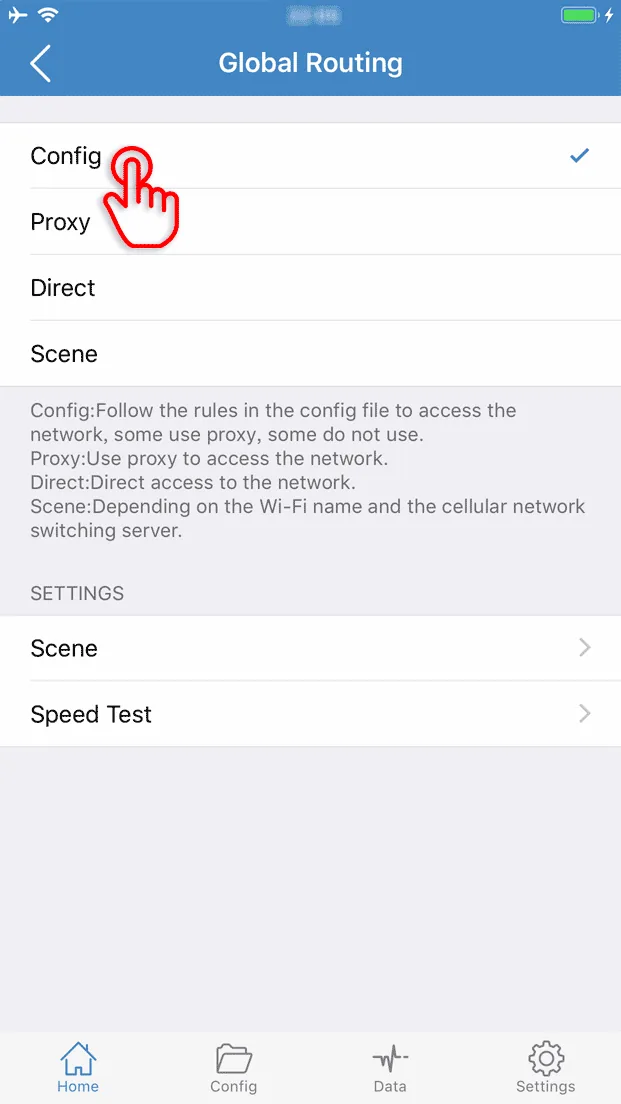
Global Routing: Config, Proxy, Direct, Scene

Global Routing

Global Routing decides what happens to traffic that did not match a specific node. There are four modes:

  • Configuration Split traffic with the loaded rules file. Recommended for daily use.
  • Proxy Send all traffic through a node. Useful as a temporary global proxy.
  • Direct Send all traffic without a node. A temporary off switch.
  • Scene Not a manual toggle. It switches by which network you are on — for example Direct on home Wi-Fi, Configuration on everything else. You must set each Wi-Fi name or cellular scene first, or nothing auto-switches.

Scene is for people who like to tinker. Day to day, staying on Configuration is enough.

05Connect

Turn the connection on.

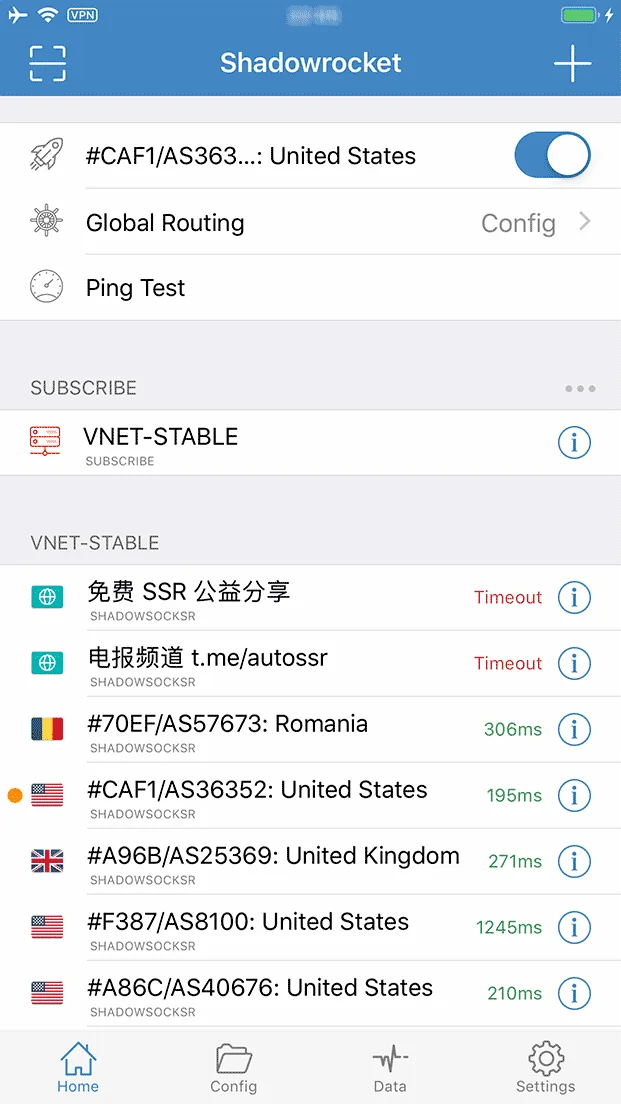
Back on Home, tap the switch at the top. The first connect may show the VPN prompt again — confirm it. When it works, a small VPN badge appears in the status bar, the switch lights up, and you see Connected plus a timer.

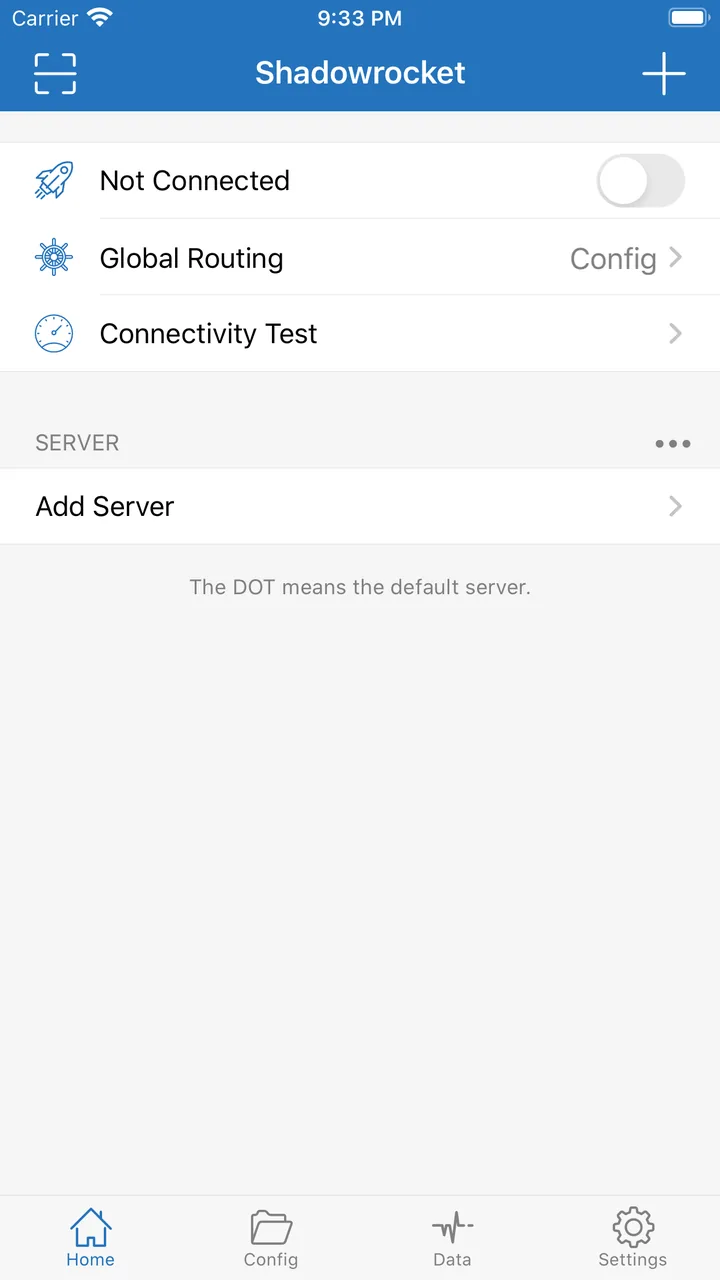
Before connect: Home shows Not Connected
Before connect: the switch is off
After connect: toggle on, VPN in the status bar, orange dot on the current node
After connect: a VPN badge in the status bar, switch on
What you seeWhat it means
VPN badge stays in the status barThe tunnel is up. iOS agrees the proxy is active
Switch on but the icon keeps blinkingStill trying, not connected. Usually a node timeout — pick another
Connects then drops after a few secondsNode or server issue. Try other nodes. If they all fail, contact the provider
VPN badge gone, switch turned itself offiOS may reclaim a long-running background tunnel. Flip the switch on again

The proxy tunnel uses the iOS VPN interface in the background. Locking the screen or switching apps usually does not drop it. Long stretches of Low Power Mode can throttle background networking and drop the tunnel — that is a system power policy, not an app bug. If stability matters more, ease Low Power Mode limits for Shadowrocket under Battery settings.

⚠️ Common issue: the icon keeps blinking after you flip the switch. The current node usually timed out. Go back to the list and pick one with a normal delay.

06Verify

Confirm the connection,
and read traffic stats.

A lit switch only means the VPN interface came up. It does not mean traffic went through the proxy as you expected. Run this full check in order:

CheckHowHealthy result
Site access Open a browser and visit a site that used to fail The page loads. No spinner, no timeout
IP location Open any "what's my IP" site The address is the node's region, not your real local IP
Traffic split On Data, watch Direct and Proxy Proxy keeps rising as you browse. It does not sit at 0
How it feels Browse for a few minutes and notice stalls Load speed close to using a nearby site on a good path
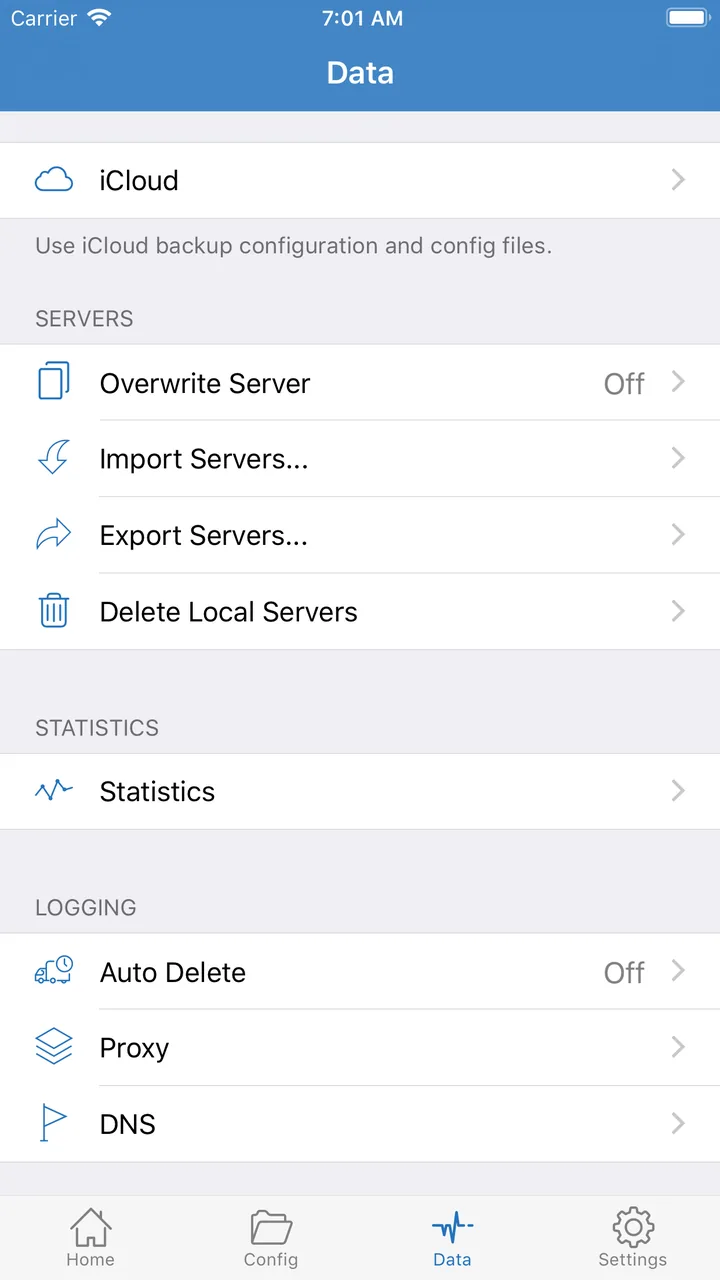
Data tab: iCloud backup, import/export, Statistics entry

How to read the Data page

The Data tab is the backup and log hub: iCloud backup at the top, import / export / delete in the middle, Statistics for traffic totals, and Logging for Proxy / DNS logs.

Open Statistics to see Direct (no node) and Proxy (through a node). If Direct keeps rising and Proxy stays 0, Global Routing or the rules are sending everything DIRECT. Go back a chapter: set the mode to Config or Proxy, and confirm the matching line for that site is PROXY.

Direct traffic will not go to zero. Local sites, Apple services, and system requests often stay DIRECT. That is expected; you do not need Direct = 0.

07Advanced

How rule-based routing works,
and per-app split in practice.

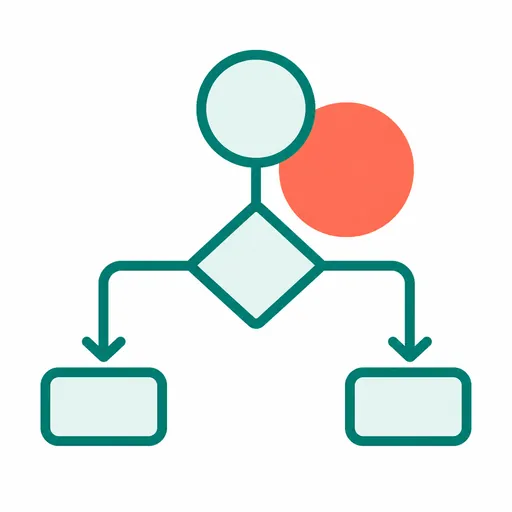
Rules match top to bottom; the hit applies its policy

Shadowrocket ships a default rules file, default.conf, covering common sites. It is enough to start. If you break the file, tap Restore Default Configuration on the Config page. A typical custom snippet looks like this:

DOMAIN-SUFFIX,netflix.com,PROXY
DOMAIN-SUFFIX,apple.com,DIRECT
GEOIP,US,DIRECT
FINAL,PROXY

Each line is TYPE,VALUE,POLICY. Matching runs top to bottom and stops on the first hit. The last line, FINAL, is the fallback when nothing else matched.

One important limit: iOS has no native "proxy this app only" API. When Shadowrocket appears to send one app through a node and another DIRECT, it is matching domains, IP ranges, or User-Agent strings those apps usually hit — it does not see which app made the request. That is why per-app split usually means importing a rule set written for that app or site, not picking the app in system settings.

Rules files can also be imported as a subscription and auto-updated: Config → + at the top right → paste the rules URL → Download → tap the file to enable. You do not edit by hand every time.

08Troubleshooting

Common failures,
and how to debug them.

01The node list is empty after import+

First confirm the URL is still valid and not expired, then check the copy is complete (no truncation, no extra spaces). If both look fine, pull to refresh the subscription.

02Delay looks fine but sites still will not open+

Check that Global Routing is Configuration or Proxy, and that the loaded rules file points that site to PROXY, not DIRECT.

03The switch turns on then drops by itself+

Usually the current node is unstable or the server is down. Switch to a lower-delay node. If every node behaves the same, contact the provider and confirm server status.

04I broke the rules and most sites will not load+

On Config, tap Restore Default Configuration to go back to the built-in default.conf, then re-add custom rules a little at a time instead of one large edit.

05The speed test does not match real use+

Set Settings → Ping Type to CONNECT. That is closer to a real handshake, so the number is more useful.

If none of this helped, go back to the home-page FAQ for more answers.