Common failures are grouped into subscriptions, connection, sites that will not load, speed tests, and sync/config. Find the closest match, then follow the steps in order — do not run every check on the page.
Note: Steps follow the official manual and multiple hands-on writeups. They cover most common cases. Provider-specific or unusual networks may need the subscription vendor. This site is not affiliated with official Shadowrocket.
These cases share one pattern: the Home node list looks wrong (empty, count stuck, nodes reappearing). The cause is usually the subscription layer, not the connection itself. Work through the four symptoms below:
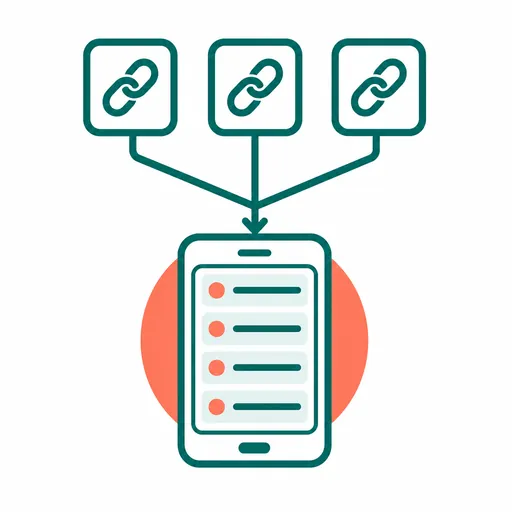
Adding a subscription only stores the URL. It does not fetch nodes by itself. Open that row and tap Update so Shadowrocket can request the URL and fill the list. This is the step most often mistaken for a failed import.
Check in order: (1) the URL expired or hit a traffic cap — confirm with the provider; (2) extra spaces, line breaks, or a truncated copy — copy the URL again as one full line; (3) open the URL in a browser and see whether you get node data, a login page, an error, or a blank page.
With iCloud auto sync on, a copy of the node stays in iCloud. Deleting it only on the device is not enough. Go to Data → iCloud, find that server, and delete the iCloud backup and sync record.
Glare or a low-resolution QR code is the usual cause. Max the screen brightness and hold the camera a bit farther to focus. If it keeps failing, paste the URL by hand.
These happen after you are already trying to connect: a blinking icon, a missing permission prompt, or a drop in the background.
Usually the selected node timed out. Go back to the node list, tap the test icon at the top right, pick a green or yellow delay, and try again. That is not an app crash.
Most often the current node is unstable or the server is down. Switch to a lower-delay node. If every node in the subscription behaves the same, it is almost certainly the provider. The client cannot fix that.
You may have tapped Don't Allow earlier. Go to Settings → General → VPN & Device Management, see whether a Shadowrocket VPN profile already exists and is off, or delete it and reopen Shadowrocket to trigger a new prompt.
If the phone stays in Low Power Mode, iOS may throttle background networking and drop the tunnel. That is a system power policy, not an app bug. If you need a stable connection, turn Low Power Mode off, or ease related limits under Battery settings.
Connected only means the VPN interface came up. It does not mean traffic went through the proxy as you expected. That is the easiest point to miss. Check in this order:
| Check | How | Notes |
|---|---|---|
| Global Routing | On Home, tap Global Routing and see the current mode | Make sure it is not Direct (all traffic bypasses the proxy). Day to day, use Configuration |
| Rules file | On Config, see which rules are loaded | Confirm the site's matching line points to PROXY, not DIRECT |
| Traffic split | On Data, watch Direct / Proxy counters | Proxy should keep rising as you browse. If it stays 0, traffic is not going through the proxy |
| DNS | In Log, look for DNS lookup failures | On some networks, DNS poisoning returns the wrong address. Try a different DNS setting |
If rules and routing look correct but one site still fails, the node itself may be blocked from that site. Switching nodes is the fastest way to tell.
When the test disagrees with real use, the app is usually fine. The test method, routing mode during the test, or mixing up delay with bandwidth is the usual mix-up.
Switch between Wi-Fi and cellular once to rule out the current network, then confirm the subscription is not expired. If everything still times out, set Settings → Ping Type to CONNECT and test again. That is closer to a real handshake and more useful as a number.
If Global Routing is Configuration during a test, the probe itself may be classified as DIRECT (the test domain happens to match a DIRECT rule), so the delay never went through a node. Temporarily switch to Proxy, test, then switch back.
Delay is how fast the handshake responds, not bandwidth or throughput. Low delay and slow pages usually means a congested shared node, or the provider's line. Try another node. If they all feel the same, contact the provider.
These usually involve iCloud sync, Config, or Module — the pieces that can be shared across devices. You rarely need to reinstall. Recover with the steps below.
First check Settings → your Apple ID → iCloud: Shadowrocket is allowed to use iCloud Drive, and iCloud Drive itself is on. Confirm the network. If settings look fine and sync still fails, iCloud is often having a temporary outage. Try deleting the iCloud backup and syncing again.
Open Config and tap Restore Default Configuration to go back to the built-in default.conf. Then re-add custom rules a little at a time and test, so a large one-shot edit is easier to undo.
If Save to iCloud is on, first check Shadowrocket's iCloud Drive permission in system settings. Then in the Files app, open the Shadowrocket folder on iCloud Drive and see whether files in Modules show as not downloaded (that happens after local iCloud cache is cleared). Wait for download, or tap to download.
If you have already worked through these steps, the problem is likely on the provider's servers. Contact them instead of endlessly tweaking the client.